
In December 2025, we published guidance on California’s AB-723 and how it affects listing photos. The key takeaway from that article was that photo editing isn’t banned, but digitally altered images require disclosure while basic photo enhancements generally do not. You can find clear and expansive descriptions on how to differentiate the two types of edits in the news article located here (includes visual examples). This shorter guide focuses on the practical “how-to” for watermarking and disclosure in your listing photo workflow.
Watermarking Digital Images
Step 0: Confirm whether the image is “Digitally Altered” or not.
Before you watermark anything, make sure the edit actually qualifies as “Digitally Altered” (disclosure required) versus a simple enhancement (no disclosure). Here are the summary explanations of the two types of edits:
No disclosure needed (“Photo Enhancements”) include common quality improvements that don’t change the property itself (e.g., lighting/exposure, cropping/straightening, sharpening, resizing, and decluttering/removal of unattached items).
Disclosure required (“Digitally Altered”) includes edits that change what the property looks like in a real way, including virtual staging. If the image in question is adding/changing furniture or fixtures, altering surfaces/materials, changing wall color/landscaping/exterior finishes, altering backgrounds/views/neighbors, or generating virtual staging elements that don’t exist, it must be disclosed.
Rule: If you have digitally altered the image, you have to declare the fact.
Key workflow rules (how-to)
1) Mark it once and you’re done (per image).
It's critical to understand that you only have to mark a given image once. If that same image is further edited later, it does not need to be re-watermarked. What matters is that the altered image is properly disclosed when presented.
2) If the image is already watermarked at the source, don’t use the Rapattoni feature.
If your workflow already applies the correct watermark/disclosure at the point of editing (or your virtual staging app outputs images with the required watermark already embedded), then you don’t need to use the MLS tool again, because the image is already marked and you have disclosed the fact.
3) If the altered image is not already watermarked, you must use the Rapattoni feature (at upload).
If you have a digitally altered image that does not already contain the watermark/disclosure, you must apply it using the MLS image management/upload process. Use these guidelines and steps to do so.
How to watermark your photos using Rapattoni MLS (4 steps):
- When you are uploading images to your listing, make sure you upload the ORIGINAL image and also the DIGITALLY ALTERED image. Ideally, they will be organized so that the original is seen followed by the altered image.
- On the original image, you should indicate in the "caption" field that this is the original image and that there is a digitally altered one available.
- On the digitally altered image, use the provided to control to indicate that it has been edited/altered and ALSO indicate in the caption that this is a digitally altered photo and that the original image is also available in this listing (sample text).
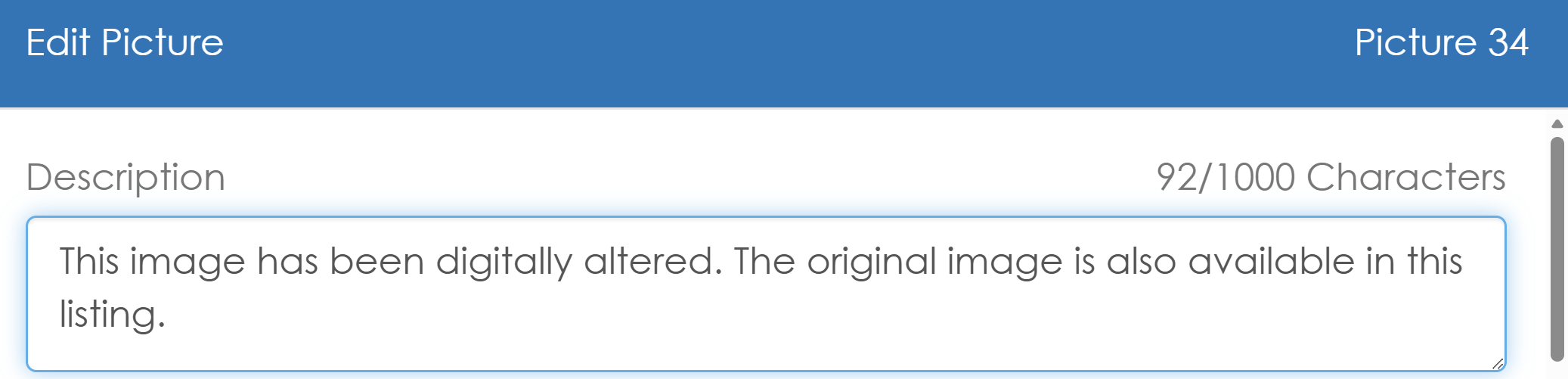
- When you save the listing's photos, the watermark is embedded in the image and it is uploaded to the MLS system and is therefore PART of the image. It cannot be removed if it is added in error (delete the incorrectly watermarked image and re-upload it being careful not to repeat the error).
COMPLETE EXAMPLE
Sample text here indicates which is the original and which is the digitally altered. Note that the two photos are in order next to one another. In this example the original is Picture 8, and the digitally altered version is Picture 9.
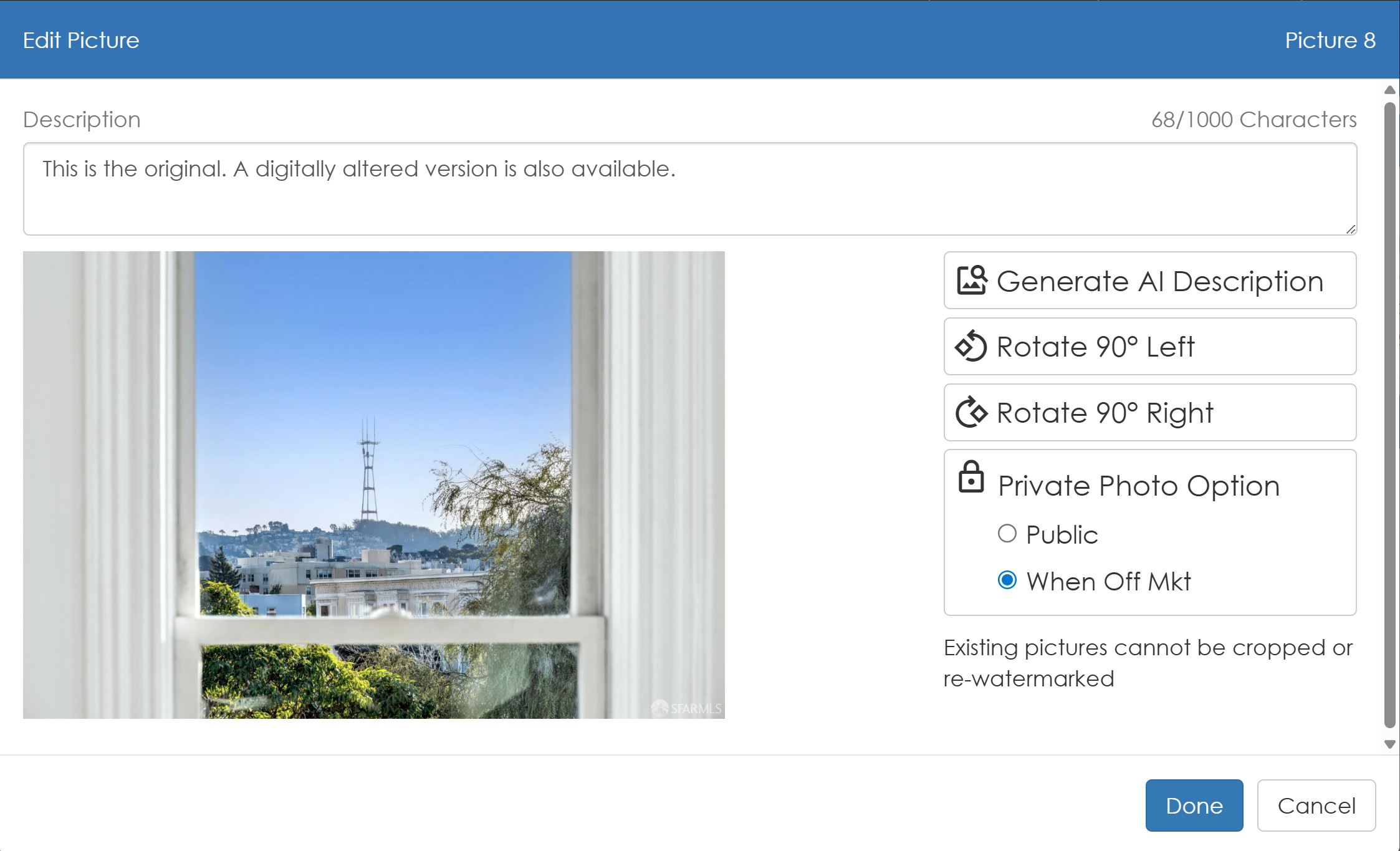 "This is the original photo. A digitally altered photo is also available. | 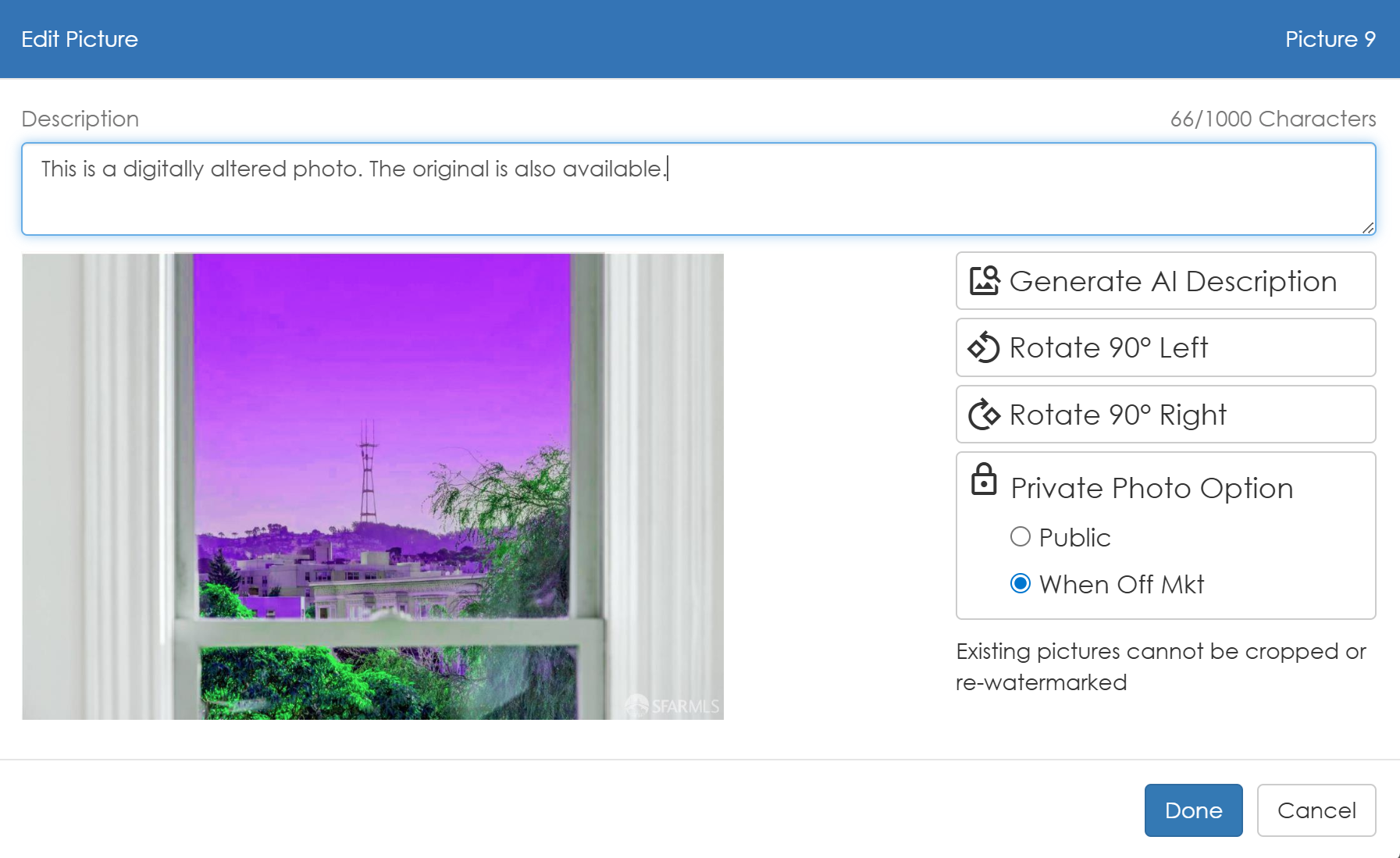 "This is a digitally altered photo. The original is also available. "This is a digitally altered photo. The original is also available. |
4) Upload-time only: no retroactive add/remove.
You only mark the image with this watermark at upload. It is not possible to go back later and remove a watermark from one image, and you can’t add one after the fact. If you need a different watermark state, you’ll need to delete and re-upload the image.
5) Watermark/disclosure information is transmitted in data feeds.
Plan for the watermark/disclosure to travel downstream to third-party applications via listing data feeds (portals, brokerage tools, etc.). Downstream applications will display the watermark, as will any brokerage sites that use the images from the SFAR datafeeds. If you see any unexpected interaction of the watermark with other applications, please reach out the MLS team by opening a ticket here.
Conclusion
AB-723 draws a bright line between routine photo enhancements and digitally altered images that change the apparent reality of the property. When an image is digitally altered, it needs disclosure, and watermarking is the practical way to make that disclosure travel with the image through the MLS system and out to third-party destinations via data feeds.